Bundled JavaCard Applets
This fork ships a set of pre-built JavaCard applets and can build more from source. This page explains what each applet is and does, and which one to install.
If you are looking at the Install Applet list on the device and wondering which file to pick, jump to Which applet should I install?.
Official Satochip documentation: for the vendor’s own guides to the Satochip, SeedKeeper and Satodime ecosystems, see the Satochip quick-start documentation. This page covers how the applets are used from SeedSigner.
Where the applets come from
The files live in the repository’s javacard-cap/ directory and are copied onto the SeedSigner OS image. On the device they appear under Tools → Smartcard Tools → DIY Tools → Install Applet and can be flashed straight to a blank JavaCard.
javacard-cap/javacard-cap.sha256 pins each file by SHA-256. A test (tests/test_javacard_cap_manifest.py) verifies the manifest on every ordinary test run, so a corrupted or substituted CAP is caught before it can be flashed.
The applets
| CAP file | Applet | What it is for | Menu |
|---|---|---|---|
SeedKeeper-0.2-official.cap | SeedKeeper v0.2 | PIN-protected storage for BIP-39 seeds, passphrases, multisig descriptors, generic secrets and GPG/BIP85 data | Tools → Smartcard Tools → SeedKeeper Functions |
SeedKeeper-Ndef-v0.2-0.1.cap | SeedKeeper + NDEF | The same SeedKeeper applet plus a small companion NDEF applet, so the card can answer NFC tag reads and carry a “tap to open” record for the Seedkeeper phone app | Tools → Smartcard Tools → SeedKeeper Functions |
SatoChip-0.12-official.cap | Satochip v0.12 | A seed-bearing signing card: store a seed, export xpubs, verify/sign PSBTs and messages on-card, 2FA | Tools → Smartcard Tools → Satochip Functions |
SatoDime-0.1.2-official.cap | Satodime v0.1.2 | A bearer card: pre-generated key slots you can seal/unseal and spend, with no PIN | Tools → Smartcard Tools → Satodime Functions |
Keycard_v3.2.cap | Keycard v3.2 | Status Keycard applet: store a seed, export xpubs, sign PSBTs; PIN/PUK management and optional duress PIN | Tools → Smartcard Tools → KeyCard Functions |
SpecterDIY.cap | Specter-DIY MemoryCard | A simple secure-element store for one BIP-39 mnemonic, with a card PIN | Tools → Smartcard Tools → Specter-DIY Functions |
SmartPGP-RSA2048.cap | SmartPGP (RSA-2048) | Open-source OpenPGP smart card applet (github-af/SmartPGP); installed with a random serial; used by the GPG Tools’ SmartGPG flows | GPG Tools → SmartGPG |
SmartPGP-RSA4096.cap | SmartPGP (RSA-4096) | As above, built for RSA-4096 keys | GPG Tools → SmartGPG |
Vivokey-OTP.cap | VivoKey OTP | YubiKey-compatible TOTP authenticator — turns the card into a hardware one-time-password token you can use anywhere a YubiKey OTP/TOTP is accepted (see VivoKey/OTPAuthenticator) | — (install only) |
A legacy SeedKeeper v0.1 CAP also exists, but only as a hardware-test fixture under
tests/javacard-cap-legacy/. It is deliberately not offered in the on-device installer. See SeedKeeper v0.1 below.
Which applet should I install?
The device’s menu is the quickest guide. Your choices depend on what you want to do:
I want to store seeds / passphrases / descriptors on a card — SeedKeeper
Install SeedKeeper-0.2-official.cap.
SeedKeeper-0.2-official.capcontains the standard536565644B6565706572package only.SeedKeeper-Ndef-v0.2-0.1.capcontains the same SeedKeeper applet plus a companion NDEF applet (...01). It is otherwise identical and stores secrets the same way.
Pick the NDEF build only if you want the card to behave as an NFC tag. In practice that means: tapping the card on an Android phone can pop up the Seedkeeper mobile app (the card carries an “Android App Launch” NDEF record for org.satochip.seedkeeper), or you want to read/write arbitrary NDEF payloads from SeedSigner’s Configure NDEF menu. If you never tap the card on a phone and only use it with SeedSigner, the plain build is enough.
Both builds are fully usable by SeedSigner. The on-device Configure NDEF and Use Seedkeeper App Link options in the SeedKeeper card settings only do something useful on the NDEF build.
DIY shortcut: in the Install Applet list, choose 8 KB storage unless you have a reason not to. It is the default and is enough for a handful of seeds, passphrases and descriptors.
I want a card that signs transactions itself — Satochip
Install SatoChip-0.12-official.cap. This is a full signing card. You can import a seed, export xpubs for a watch-only wallet, and have the card verify and sign PSBTs (and messages) directly. See Satochip.
I want a bearer card — Satodime
Install SatoDime-0.1.2-official.cap. A Satodime has key slots whose private keys the card generated and never reveals until you unseal a slot. It has no PIN. See Satodime.
I want to use a Status Keycard — Keycard
Install Keycard_v3.2.cap, then enable KeyCard support in Settings → Advanced. See Keycard.
I want a simple mnemonic card — Specter-DIY
Install SpecterDIY.cap, then enable Specter-DIY support in Settings → Advanced. See Specter-DIY.
I want an OpenPGP card — SmartPGP
Install SmartPGP-RSA2048.cap or SmartPGP-RSA4096.cap. SmartPGP is an open-source OpenPGP smart card applet for JavaCard. It implements the OpenPGP card specification, so you can use the card for GPG key storage, encryption, signing and authentication with any OpenPGP-compatible software, and it supports RSA as well as elliptic-curve (ECC) keys — the two bundled CAPs differ only in the key sizes they are built for.
SeedSigner generates a random 4-byte serial and embeds it in the AID during installation, matching the flexsecure applet procedure. See GPG Tools, including the SmartGPG menu for on-card key generation and PIN management.
I want YubiKey-compatible TOTP — VivoKey OTP
Install Vivokey-OTP.cap. The VivoKey OTPAuthenticator applet makes the JavaCard behave like a YubiKey for one-time passwords, so the same card you keep seeds on can also act as a hardware authenticator. SeedSigner installs and uninstalls it like any other applet; the TOTP secrets are managed with VivoKey tooling, not from SeedSigner’s menus.
Installing an applet
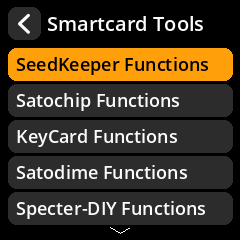
- Go to Tools → Smartcard Tools → DIY Tools.
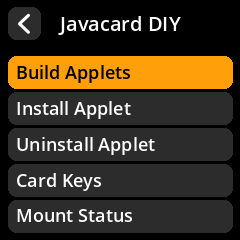
- Choose Install Applet.
- Select the
.capfile. Files from the repository come first, followed by any.capfiles injavacard-cap/on the MicroSD card (labelled Internal / MicroSD so you can tell them apart). -
For SeedKeeper, choose a storage size:
Button Install parameter 4 KB 0FFF8 KB (default) 1FFF16 KB 3FFF32 KB 7FFF64 KB FFFF - For SmartPGP, SeedSigner generates a random serial number automatically.
- Wait for the success screen.
Requirements
- A blank (or previously wiped) JavaCard. The J3H145 cards sold for Satochip/SeedKeeper use are typical.
- A smart card reader. On a contactless/NFC reader, applet installation can be less reliable than on a contact reader; if an install fails, try a USB contact reader.
- Installation uses the bundled
pygpmodule — you do not needgp.jaror a separate GlobalPlatform install.
Uninstalling
DIY Tools → Uninstall Applet lists the applets currently on the card, using friendly names (SeedKeeper, Satochip, Satodime, Keycard, SmartPGP, SpecterDIY, …). Uninstalling erases the applet’s data and cannot be undone.
Build applets from source (optional)
DIY Tools → Build Applets compiles the Satochip/SeedKeeper/Satodime applets from source and writes the resulting .cap files into javacard-cap/ on the MicroSD card, where Install Applet can then flash them.
- The ANT build file is generated from trusted, hard-coded toolchain paths inside SeedSigner. A
javacard-build.xmlon the MicroSD is never executed — ANT build files are arbitrary code and would be a security risk. -
To customise the build, place a strictly-validated
javacard-build.jsonat the root of the MicroSD:{ "applets": ["satochip", "seedkeeper", "satodime", "satochip-thd89", "seedkeeper-thd89", "satodime-thd89"], "overrides": { "seedkeeper": { "aid": "536565644B6565706572", "version": "0.2" } } }Only
applets(a list of known names) and per-appletaid(32 hex chars) /version(N.N) are honoured. Unknown names are dropped;sources/jckitpaths cannot be overridden. - Buildable variants include THD89 versions for that secure element. The output CAPs are named e.g.
SeedKeeper-built-0.2.cap,SatoChip-built-0.12.cap,SatoDime-built-0.1.2.cap.
The source is expected in a Satochip-DIY checkout at /mnt/diy/Satochip-DIY (SeedSigner OS) or /home/pi/Satochip-DIY (a development board). See Smartcard installation for build prerequisites.
JavaCard keys (GlobalPlatform)
DIY Tools → Card Keys manages the GlobalPlatform keys used to install/ uninstall applets:
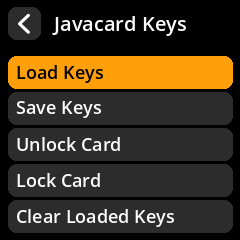
- Load Keys / Save Keys — read/write
javacard-keys.txtat the card root, or store the same plaintext format on a SeedKeeper (entries are labelled with thejc_keysprefix). - Generate Single Key / Key Set — generate random ENC/MAC/DEK keys on the device.
- Unlock Card — reset the card to the default development keys (
404142434445464748494A4B4C4D4E4F). Use with care. - Lock Card — set the card’s keys to the loaded ENC/MAC/DEK set. Save the keys first.
- Clear Loaded Keys — forget the keys currently held in memory.
If you lock a card with custom keys and lose them, you can no longer install or uninstall applets on it.
SeedKeeper v0.1 (legacy)
SeedKeeper v0.1 is superseded and is not shipped in javacard-cap/. It is worth knowing about because a card flashed with it behaves differently:
- It hard-codes a 4 KB object memory and ignores the install parameters, so choosing 8/16/32/64 KB has no effect.
- It cannot delete secrets (
RESET_SECRETthrows0x9C05), so once full it can only be recovered by a factory reset or re-flash. - Both v0.1 and v0.2 report applet version 0.1; the discriminator is the protocol minor version (v0.1 → 1, v0.2 → 2).
If an import fails with SW_NO_MEMORY_LEFT (0x9C01) on a card that seems to have room, you are likely on a v0.1 applet. SeedSigner’s error message tells you the correct recovery for the version it detects. Re-flashing SeedKeeper-0.2-official.cap (or the NDEF build) fixes it.
See tests/javacard-cap-legacy/README.md for the full behavioural comparison.
Testing build: quick applet flashing
Developer/testing builds (SEEDSIGNER_TESTING_BUILD=1) add a Flash Applet button to the Home screen that jumps straight to the Install Applet picker, so you can flash a card without navigating the Tools menus.