Quick start 06 — First-time DIY card setup (GlobalPlatform keys)
A blank JavaCard is protected by GlobalPlatform keys. Until you change them, the card uses the well-known default development keys, so anyone with a reader can reinstall or wipe your applet. This guide sets your own keys.
Do this after installing the applet(s) you want. Once the card is locked with your own keys, applet installation/uninstallation requires those keys.
What you need
- A card with the applet(s) already installed (Quick start 01).
-
DIY Tools → Card Keys.
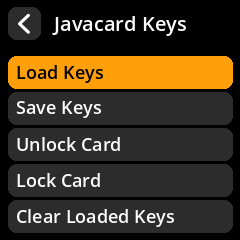
1. Generate keys
-
Card Keys → Generate Key Set (or Generate Single Key).
- A key set contains ENC/MAC/DEK keys.
- A single key is one 16-byte key.
-
Card Keys → Save Keys → To MicroSD to write
javacard-keys.txtat the card root. You can also save to a SeedKeeper (To Seedkeeper), which stores them under thejc_keys_prefix.Back these keys up. If you lock the card with keys you cannot reproduce, you can no longer install or remove applets on it.
2. Lock the card
- Card Keys → Lock Card.
- Confirm. SeedSigner authenticates with the default keys, writes your ENC/MAC/DEK keys, and the card is now locked.
- Verify by trying to Install Applet again — it will fail without the keys loaded.
3. Unlock (reset to default keys)
If you need to get back in — or want to return a card to a known state:
- Load your keys first (if the card is locked): Card Keys → Load Keys, choose From MicroSD or From Seedkeeper.
- Card Keys → Unlock Card. This authenticates with the loaded keys and resets the card to the default development keys (
404142434445464748494A4B4C4D4E4F). - Remember the card is now unprotected again.
Unlock Card resets the card to the default dev keys. Only use it on a card you intend to leave open, or immediately re-lock it.
4. Clear loaded keys
Card Keys → Clear Loaded Keys forgets the keys held in memory. Use it when you are done so keys do not linger in RAM.